
How to Backup Mac to External Hard Drive — Step-by-Step
Backing up a Mac to an external hard drive protects your files from hardware failure, accidental deletion, or ransomware. This guide shows three reliable methods—Time Machine, a full clone, and manual copy—plus formatting, encryption, and troubleshooting tips so you can choose the right approach for your needs.
Which method should you use?
Quick comparison to help you decide:
- Time Machine — Best for continuous, incremental backups and easy restore of files or system states.
- Bootable clone (Carbon Copy Cloner / SuperDuper) — Best when you need a bootable duplicate of your Mac for fast recovery.
- Manual copy — Simple for copying specific folders (Documents, Photos) but not for system recovery.
Before you start: prepare the external drive
Follow these steps so your Mac and drive will work together:
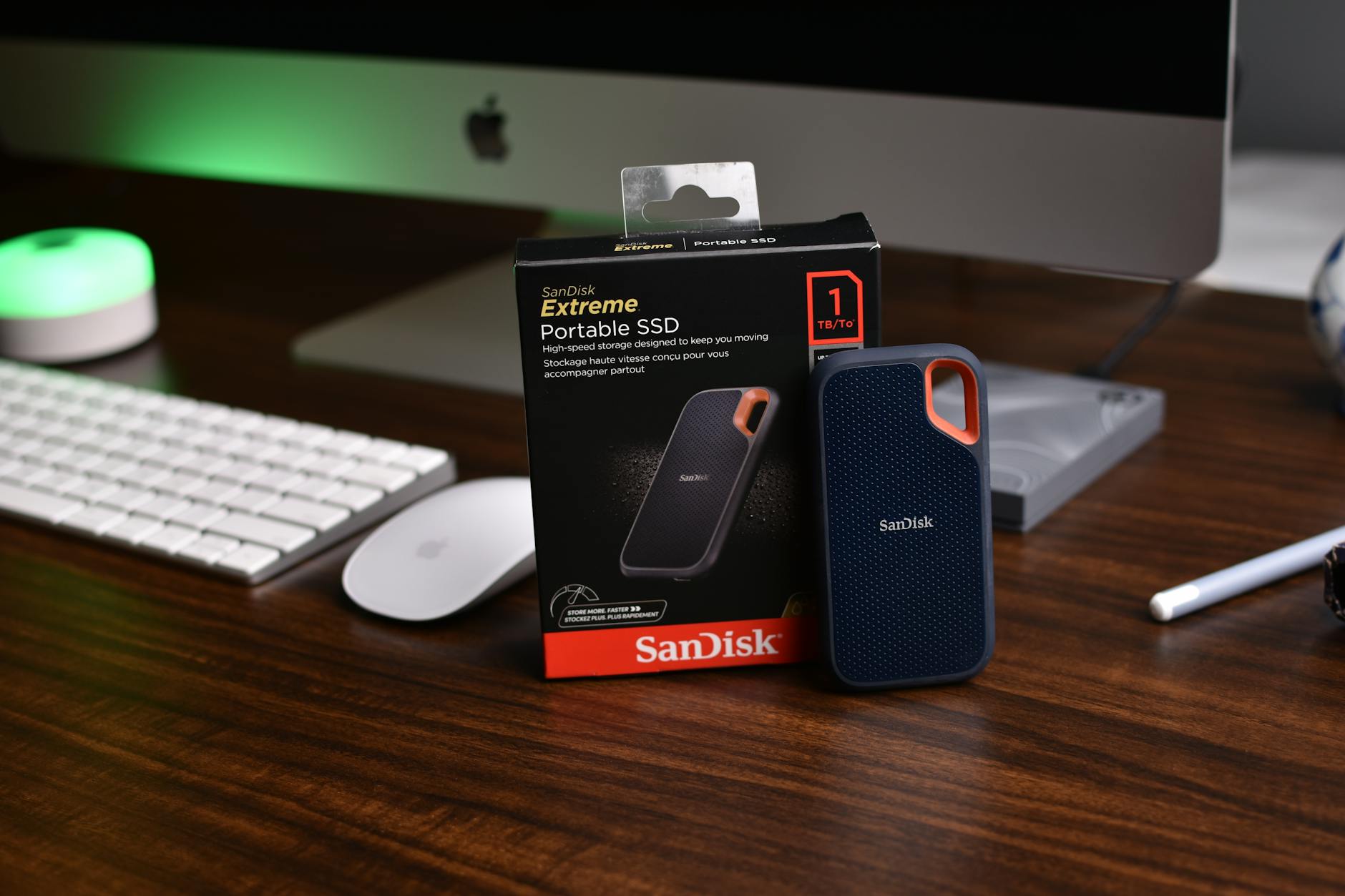
- Pick the right drive: SSDs are faster and durable; HDDs are cheaper for large capacity. For recommendations, see our article on Best External Drive for Mac.
- Connect the drive and open Disk Utility (Applications > Utilities).
- Erase and format the drive: choose APFS for modern macOS (Big Sur and later) or Mac OS Extended (Journaled) for older macOS versions. Use GUID Partition Map as the scheme. Apple’s guide to erasing drives is helpful: Erase and reformat a storage device (Apple).
- Enable encryption (recommended): check the option to encrypt the drive when you format, or enable encryption in Time Machine settings later.
Method 1 — Use Time Machine (recommended for most users)
Time Machine is built into macOS and makes automatic, incremental backups. It’s the most user-friendly option for file-level restore and full system recovery.
Set up Time Machine
- Connect and format your external drive as above.
- Open System Settings (or System Preferences) > Time Machine.
- Click Select Backup Disk, choose your drive, and check Back Up Automatically. Turn on encryption if prompted.
- Initial backup may take a while; keep the drive connected until it finishes.
Time Machine restores are documented by Apple: About Time Machine backups (Apple).
Method 2 — Create a bootable clone (best for fast recovery)
A bootable clone is a complete copy of your startup disk. If your Mac’s internal drive fails, you can boot from the clone and continue working immediately.
How to clone your Mac
- Format the external drive (APFS recommended for newer macOS).
- Use a cloning app like Carbon Copy Cloner or SuperDuper. Carbon Copy Cloner is a popular option: Carbon Copy Cloner.
- Open the app, choose your internal drive as the source and the external drive as the destination, then run the clone.
- Verify by attempting to boot from the external drive (restart while holding the Option/Alt key and select the external disk).
Clones are best combined with periodic Time Machine backups if you want both quick recovery and version history.
Method 3 — Manual copy (good for selective backups)
Drag-and-drop via Finder is fine for copies of folders such as Documents, Photos, and Desktop. This is quick but not a substitute for Time Machine or a clone if you need full system recovery.
- Create a folder on the external drive named with the date (e.g., “Backup-2026-05-01”).
- Copy important folders: ~/Documents, ~/Pictures, ~/Music, Desktop. Use Finder or rsync in Terminal for faster, resumable transfers.
- Verify copied files and keep a regular manual backup schedule.
Secure your backup: encryption and verification
- Always enable encryption for backups containing personal or business data. Time Machine can encrypt automatically; for clones, use the encryption feature in the cloning app or format the target as encrypted.
- Verify backups by browsing the external drive, testing file opens, or booting from a clone occasionally.
- Keep at least two copies if the data is critical: an external drive and an offsite/cloud backup. See our pillar post Backup Software & Tools for offsite and cloud backup options.
Troubleshooting common problems
Drive not recognized
Try a different cable/port, check Disk Utility for the device, and mount or repair it using First Aid.
Time Machine won’t complete the initial backup
Leave the Mac awake and connected; if it still fails, check Console for Time Machine errors or reformat the drive and try again.
Clone won’t boot
Confirm the clone was made to an APFS volume (for recent macOS) and that the external drive is set as a bootable device; test with the Option key at startup.
Checklist before you finish
- Drive formatted for macOS (APFS or Mac OS Extended where appropriate).
- Encryption enabled for sensitive backups.
- Time Machine or a clone scheduled and verified.
- At least one offsite or cloud copy for critical data—learn more in our Backup for Individuals guide.
Conclusion
Now you know how to backup mac to external hard drive using Time Machine for ongoing protection, a bootable clone for rapid recovery, or manual copy for quick folder backups. Choose the method (or mix of methods) that fits your risk tolerance and recovery needs, enable encryption, and verify your backups regularly.
Related AgooCloud resources
- Backup for Individuals: Secure, Automatic Personal Data Protection
- How To Backup Your Computer To A Hard Drive
- Best Mac Backup Software
FAQs
Do I need to format an external drive before using it for backups?
Yes. Format with APFS for modern macOS or Mac OS Extended (Journaled) for older versions. Use GUID Partition Map. Formatting ensures compatibility and performance.
Is Time Machine enough by itself?
Time Machine is excellent for most users because it offers automated incremental backups and easy restores. For the fastest disaster recovery, consider adding a bootable clone as a complement.
Can I encrypt Time Machine backups?
Yes. When selecting the backup disk in Time Machine, you can enable encryption. This protects your backup if the drive is lost or stolen.
How often should I back up my Mac?
Time Machine runs hourly by default, which is suitable for most. If you do manual backups, aim for at least once a week for personal data and more frequently for active projects.
What if my external drive fails?
Always keep at least two backups: one local (external drive) and one offsite/cloud copy. If the external drive fails, restore from the secondary copy. Our Backup Software & Tools pillar explains cloud and offsite options.