
How Do I Back Up My Mac — Easy Steps & Options
If you’re asking how do i back up my mac, this compact guide walks through the safest methods: Time Machine, iCloud, cloning, cloud backups and verification.
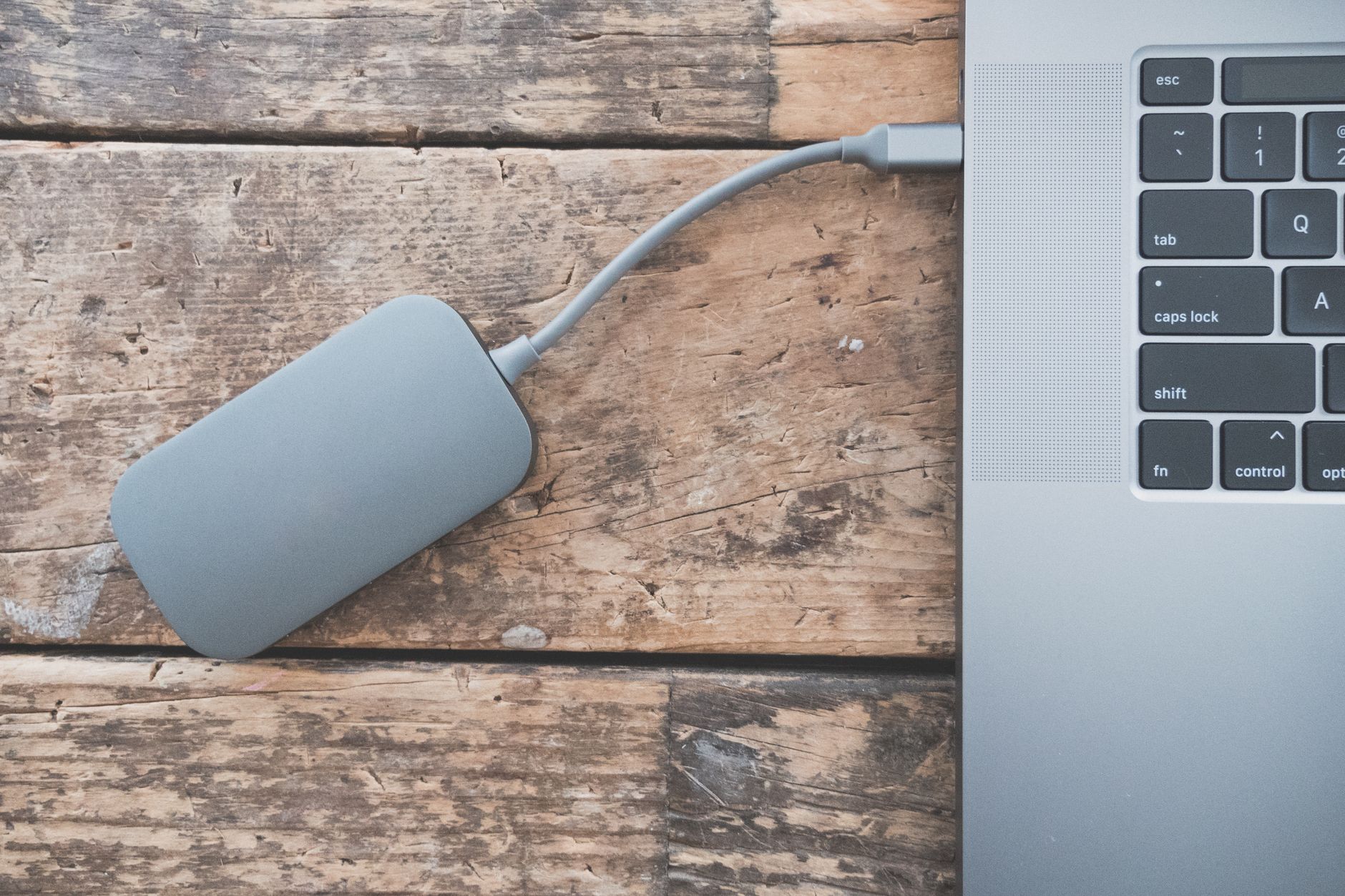
How do I back up my Mac: quick choices
There are four practical approaches to back up a Mac. Each has pros and trade-offs — best practice is to use at least two different methods (local + offsite):
- Time Machine — automatic local backups to an external drive.
- Cloud backup — continuous offsite copies (managed providers or services like AgooCloud).
- iCloud / iCloud Drive — syncs and stores your Desktop & Documents, photos, and some app data.
- Bootable clone — a full, bootable copy of your startup disk for fast recovery.
1. Use Time Machine (recommended for most users)
Time Machine is built into macOS and is the simplest way to keep regular local backups.
- Connect an external drive (USB, Thunderbolt, or network drive).
- Open System Settings > General > Time Machine (or System Preferences > Time Machine on older macOS).
- Choose Backup Disk and select the drive. Time Machine will format the drive if needed and make hourly/daily/weekly backups automatically.
Apple’s Time Machine guide is useful for details: Apple Support: Back up with Time Machine.
2. Use iCloud for synced files and settings
iCloud is not a complete replacement for full-disk backups but is excellent for syncing Photos, Desktop & Documents, and app data across devices.
To enable: Apple menu > System Settings > Apple ID > iCloud, then enable iCloud Drive and Desktop & Documents Folders.
More about iCloud: Apple iCloud Support.
3. Add an offsite cloud backup (for ransomware and theft protection)
A managed cloud backup stores encrypted copies offsite. This protects you from drive failure, theft, and ransomware that may encrypt local backups.
Options vary: dedicated Mac backup apps, cross-platform cloud backup services, or business-managed services. If you want an easy personal or small-business solution, consider AgooCloud for automated offsite backups. Learn more in our Backup Software & Tools guide.
4. Create a bootable clone for instant recovery
Bootable clones (created with tools like Carbon Copy Cloner or SuperDuper) copy your startup disk so you can boot from the external drive immediately if the internal disk fails.
Cloning is helpful for catastrophic failures and for fast migration to a new drive, but combine it with one offsite copy — clones are usually local.
5. Manual file copies (quick but limited)
Copying important folders to an external drive works for small sets of files. It’s fast but error-prone and easy to forget — don’t rely on manual copies alone.
Best practices and backup schedule
- Follow the 3-2-1 rule: 3 copies, on 2 different media, 1 offsite copy.
- Keep Time Machine running continuously; check backups weekly.
- Encrypt backups — Time Machine can use encrypted disks; cloud backups should encrypt in transit and at rest.
- Test recovery at least once a quarter: restore a few files and, if possible, boot from clone or restore a system snapshot.
Security: encryption, passwords, and retention
Always enable encryption for local and cloud backups. Use a strong password, enable two-factor authentication on your Apple ID and cloud accounts, and maintain versioning/retention to recover older files.
How to restore when something goes wrong
If a file is deleted or corrupted:
- Use Time Machine to browse and restore previous versions of individual files.
- Restore from your cloud backup for file-level or full-disk recovery.
- Boot from a clone to get back working immediately, then copy data to a repaired or replaced drive.
Checklist: how do i back up my mac — quick setup
- Pick an external drive (at least 2× your used disk space) and enable Time Machine.
- Enable iCloud Drive for Desktop & Documents if you use those features.
- Subscribe to a cloud backup or managed service for offsite copies (AgooCloud is one option).
- Create a bootable clone if you need extremely fast recovery.
- Verify backups and test restores regularly.
Need more help or a managed option?
If you want hands-off, automated, encrypted cloud backups for personal or business use, see our pages for Backup for Individuals and Backup for Small Business, or read our full Backup Software & Tools pillar for comparisons and recommendations.
FAQ
Do I need both Time Machine and a cloud backup?
Yes. Time Machine is great for fast local restores; a cloud backup protects against theft, fire, and ransomware. Use both for a resilient strategy.
How often should I back up my Mac?
Time Machine runs hourly; ensure cloud backups run continuously or daily. For active users, daily offsite backups are a minimum.
Can I boot from an external Time Machine drive?
Time Machine backups aren’t usually bootable. For a bootable fallback, create a clone (Carbon Copy Cloner or SuperDuper).
Is iCloud a full backup?
No. iCloud syncs files and stores some app data but does not replace a full disk backup. Combine iCloud with Time Machine and an offsite backup.