
How to Retrieve Data From Hard Drive Safely
Lost files are stressful. This clear, step-by-step guide explains how to retrieve data from hard drive in the most common failure scenarios—deleted files, corrupted partitions, and failed disks—without making the problem worse.
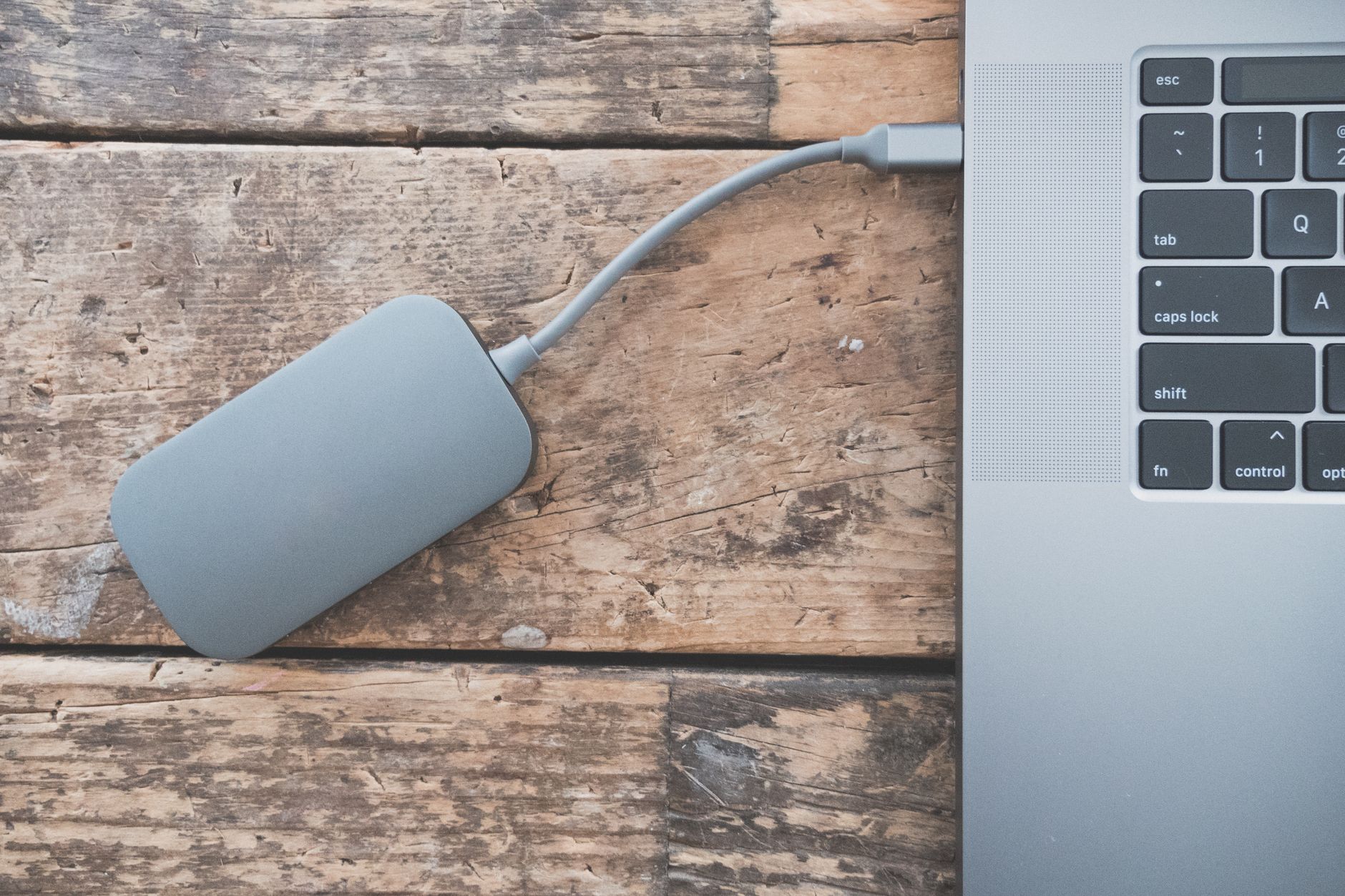
Quick checklist before you start
- Stop using the affected drive immediately — continued use can overwrite recoverable data.
- Identify the failure type: accidental deletion, logical error (corruption/partition loss), or physical/hardware failure.
- Decide DIY vs professional recovery based on importance and complexity of data.
When to retrieve data from hard drive yourself
You can often recover files yourself when the issue is logical: deleted files, formatted partitions, or accidental re-partitioning. Follow safe steps and use trusted tools below.
Step-by-step: safe DIY recovery (logical errors)
- Power down and remove the drive (if possible). Work from a separate healthy computer.
- Connect the drive using a USB adapter or external enclosure to avoid booting from it.
- Create a disk image (bit-for-bit) of the drive before recovery. Tools like ddrescue (Linux) or commercial imaging tools preserve a copy you can revert to.
- Run read-only recovery software against the image (never write to the original disk). Popular options: Recuva, TestDisk/PhotoRec, Disk Drill, R-Studio.
- Recover files to a different drive — never the same disk you’re recovering from.
- Verify recovered files for integrity before deleting anything else.
When not to attempt DIY recovery
Contact a professional data recovery service if you see any of these signs:
- Clicking, grinding, or unusual noises from the drive (possible physical damage).
- Drive not detected by BIOS/OS intermittently or not at all.
- Critical or business data with no available backups.
Physical failures handled by a lab often require clean-room disassembly and specialized equipment. DIY attempts in those situations can permanently destroy data.
Best tools and approaches by platform
Windows
- Recuva — good for simple deleted-file recovery.
- R-Studio or EaseUS Data Recovery Wizard — more advanced recovery and partition support.
- Use a Linux live USB to create images safely if Windows tools can’t access the disk.
macOS
- Disk Drill and Data Rescue are popular tools for macOS file recovery.
- Use Target Disk Mode or an external enclosure to prevent macOS from writing to the damaged drive.
Linux
- GNU ddrescue — create a rescue image of a failing disk.
- TestDisk (partition recovery) and PhotoRec (file carving) — open-source and effective.
SSD-specific notes
SSDs use wear-leveling and TRIM. If TRIM has zeroed out blocks after deletion, recovery may be impossible. Use specialized ssd recovery tool recommendations and image the drive immediately.
How professionals approach recovery
Data recovery labs follow a strict workflow: diagnostics, imaging (if possible), clean-room repair for physical faults, and recovered-data extraction. If your data is business-critical, consult a certified lab early — many offer free diagnostics.
Prevent future data loss
Recovering data is costly or impossible in some cases. Reduce future risk by:
- Keeping a 3-2-1 backup strategy: 3 copies, 2 media types, 1 offsite/cloud copy.
- Using managed backup tools — learn more in our Backup Software & Tools pillar for recommended approaches and products.
- Automating backups with services for individuals and businesses: see Backup for Individuals and Backup for Small Business.
Quick recovery workflow — summary
- Stop using the drive.
- Identify the issue (logical vs physical).
- Image the drive (read-only) whenever possible.
- Run recovery software against the image, save output to a different disk.
- Call a professional if you detect physical damage or the data is critical.
Internal resources and further reading
- How To Recover Windows Deleted Files — step-by-step for Windows deletions.
- How To Restore PC From Backup — when a backup is available, restoration is faster and safer.
- Linux Data Recovery Software — tools and workflows for Linux users.
For authoritative external guidance on recovering files and preventing loss, see Microsoft’s support pages on file recovery: support.microsoft.com.
Conclusion
When you need to retrieve data from hard drive, act carefully: stop using the disk, image it, then run read-only recovery tools or contact a professional. And remember — the smartest recovery is the one you never need: automated backups and simple redundancy remove much of this risk.
FAQ
Can I retrieve data from hard drive after formatting?
Often yes, if you stop using the drive immediately. Use imaging and recovery tools like TestDisk or commercial recovery software to scan the formatted disk. If the drive was securely wiped or overwritten, recovery is unlikely.
Is it safe to run recovery software on a failing drive?
Running recovery software can stress a failing drive. First create an image with ddrescue or have a lab image the drive. Run recovery against the image to avoid further damage.
How long does data recovery take?
Time varies: a simple recovery can take minutes to hours; imaging a large or failing drive can take many hours or days. Professional lab timelines also vary based on diagnostics and repair needs.
What if I can’t retrieve data from hard drive myself?
If DIY steps fail or the drive shows physical symptoms, stop further attempts and contact a reputable data recovery service. Continued DIY attempts can reduce the chance of successful professional recovery.